
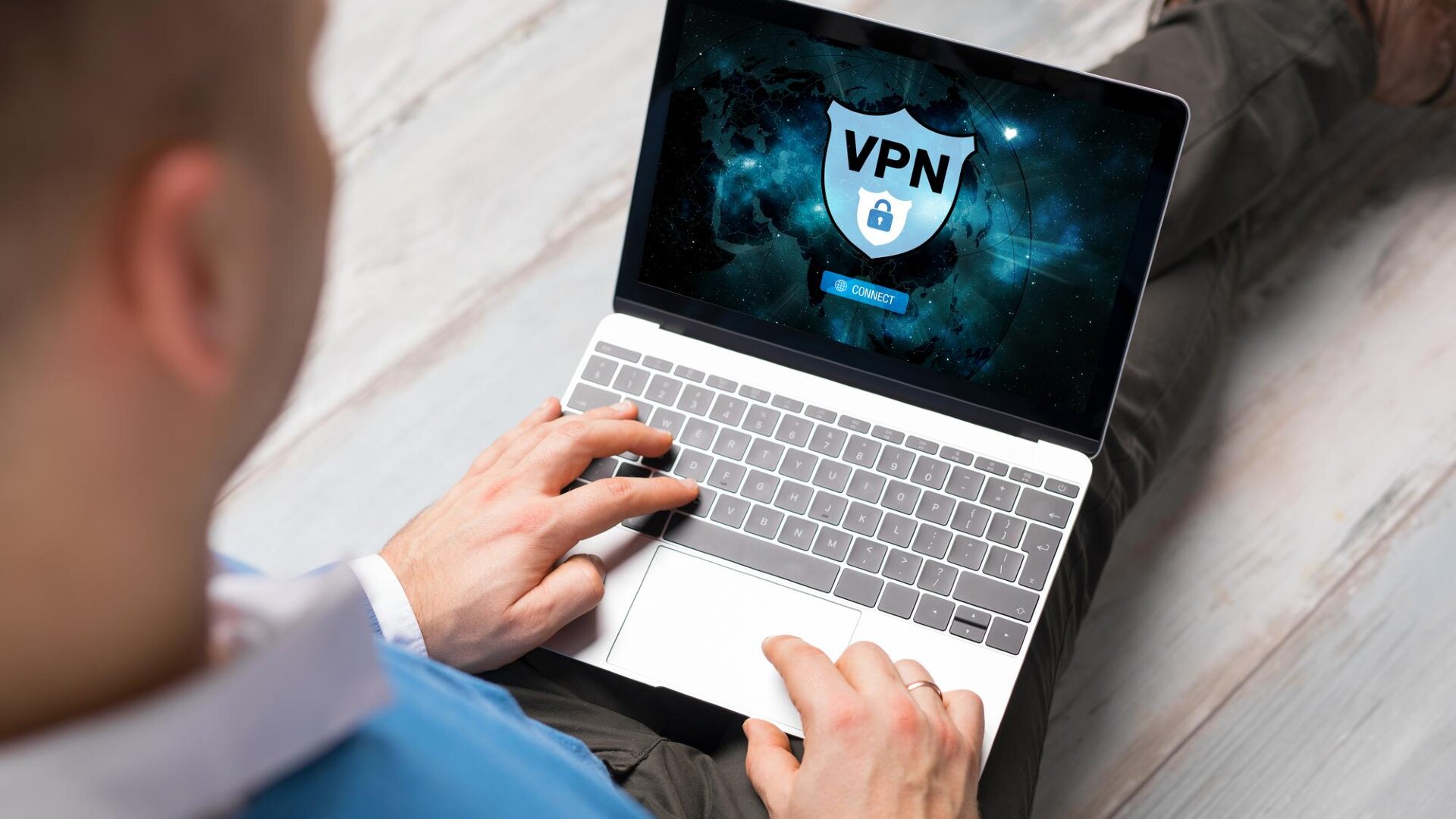
Fake LetsVPN installers are spreading malware that can give hackers full control of a computer. Here’s how the attack works and how you can download software more safely each time.
Table of Contents
What Happened?
Cybernews reported the attack on July 9, 2026, based on research from cybersecurity company ThreatLocker.
Attackers hide the malware inside a fake Windows installer that also installs the real LetsVPN app. That means everything may look normal after the download, even though harmful software has already been installed.
Once active, the malware can record what you type, steal browser data, target Telegram Desktop, and let hackers control the device.
This kind of attack can put login details, private messages, and other personal information in criminal hands. Criminals may use that information to break into your account or make phishing messages look more convincing.
It is also worth remembering that your data may already have been leaked in other incidents without you knowing. Checking for leaks can help you spot risks earlier, especially before criminals use your information against you.
Futureproof monitors your data for leaks 24/7 and helps you reduce scam risks with simple, clear steps.
Who Was Targeted and What Could Be Stolen?
ThreatLocker said the fake installer directly targets LetsVPN users, including people who use the service to reach blocked websites. The report did not say how many people downloaded the file or how many computers were infected. It also did not confirm which victims had specific information stolen.
Once active, the malware can record keystrokes, copy clipboard text, transfer files, and let attackers control the computer remotely. It can also target Telegram Desktop account information and send Telegram traffic through attacker-controlled systems.
The fake LetsVPN installer delivers malware that includes a keylogger, a tool that secretly records what you type. The malware can erase browser cookies, which are small files that keep you signed in, along with saved login details. When this forces you to log in again, the keylogger can capture your username and password.
How Fake LetsVPN Installers Take Over a Computer
The analyzed file was named “Kuailian_win-setup.86.msi.” When a user opens it, the fake installer starts the malware before the real VPN installation begins. The malware then contacts a command-and-control server, which is a server attackers use to send instructions remotely.
The final malware runs in the computer’s memory instead of saving itself as a normal file, which can make it harder for some security tools to find. It can also connect to many possible attacker servers, including some with names based on “Nishihaoren,” which means “you are a good person” in simplified Chinese. That is why ThreatLocker called the malware GoodPersonRAT.
To keep running, the malware creates Windows services and scheduled tasks. These are automatic background jobs that can start before you even sign in.
ThreatLocker said the real VPN installer was digitally signed, meaning its publisher was verified. The harmful MSI package was not signed.
The report did not confirm how attackers delivered the fake installer to victims. Cybernews noted that similar files often spread through fake ads, phishing links, fake download sites, forums, or direct messages.
Why a Familiar Download Can Still Put You at Risk
This attack works because the expected VPN still appears to install successfully. That makes warning signs easy to miss, especially when the file name, installation screen, and final app all look familiar.
But a familiar name or a working app does not prove the download was safe. The safest move is to download apps only from the company’s official website or a trusted app store.
This is especially important for apps that handle your private information, such as VPNs, browsers, and security tools.
3 Ways to Download Software More Safely
These simple habits can help you avoid fake installers and limit the damage if you open one:
1. Start from the official download page
Be careful with download links in ads, unexpected messages, or unfamiliar websites. Attackers can copy a real brand and make a fake download page look convincing.
Type the company’s known website address yourself, then download the app from that site. If you are unsure, use the company’s verified support page or an official app store listing.
2. Check the file before opening it
Do not trust an installer only because its name looks familiar. In this attack, the fake file targeted Windows devices, and the real VPN still installed. That means everything could appear normal while malware ran in the background.
Before opening a downloaded file, scan it with the security tool on your device. On Windows, use Microsoft Defender or another trusted antivirus program. On Android, keep Google Play Protect turned on. On a Mac, do not bypass security warnings for apps from unknown developers.
A scan cannot guarantee a file is safe, but it can help catch known threats before you open them.
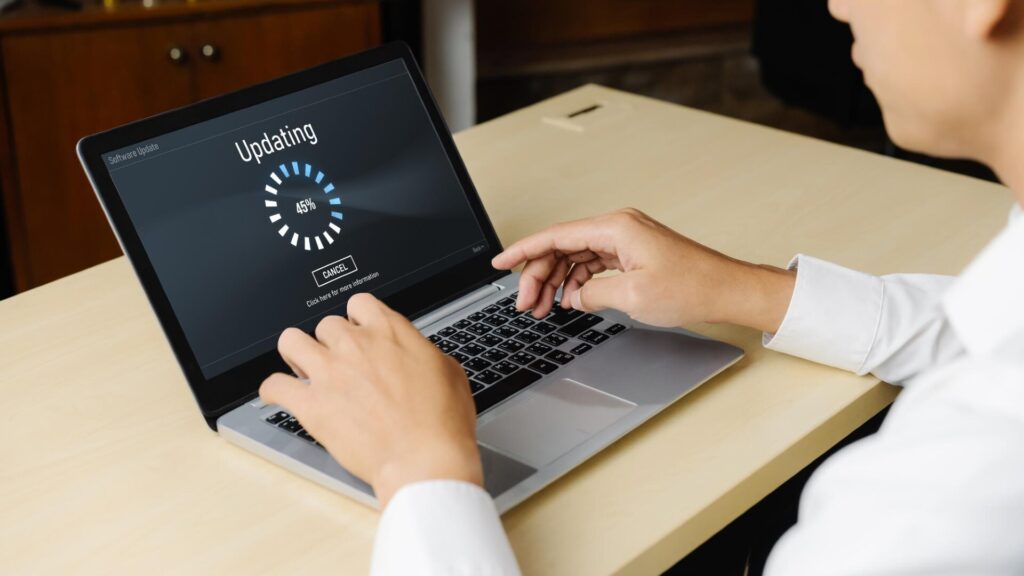
3. Keep your device and security tools updated
Outdated software may miss newer threats or leave known security gaps open. Keeping your device and security tools updated helps them use the latest protection.
On Windows, open Start > Settings > Windows Update > Check for updates. If updates are available, choose Download and install, then restart the computer if Windows asks. Also update Windows Security. Open Windows Security > Virus & threat protection > Protection updates > Check for updates.
On a Mac, open Apple menu > System Settings > General > Software Update. On iPhone or iPad, open Settings > General > Software Update. On Android, open Settings > System > Software updates or Settings > Security & privacy > System & updates. The exact wording may vary by device.
Install available updates as soon as you can. They often include security fixes that help protect your device from known threats.
A Normal-Looking Install Does Not Mean a Download Is Safe
Harmful software can arrive alongside the real program you expected. That is why it is important to use official download pages and act quickly if something feels suspicious after installation.
Tools like Futureproof can also help you spot leaked-data risks earlier and strengthen the security around your email account. With the right habits in place, you can respond faster, reduce damage, and feel more confident when downloading something new.

At Futureproof, Kevin explains digital safety in simple words, with clear tips and zero fluff. He holds a degree in information technology and studies fraud trends to keep his tips up-to-date.
In his free time, Kevin plays with his cat, enjoys board-game nights, and hunts for New York’s best cinnamon rolls.