
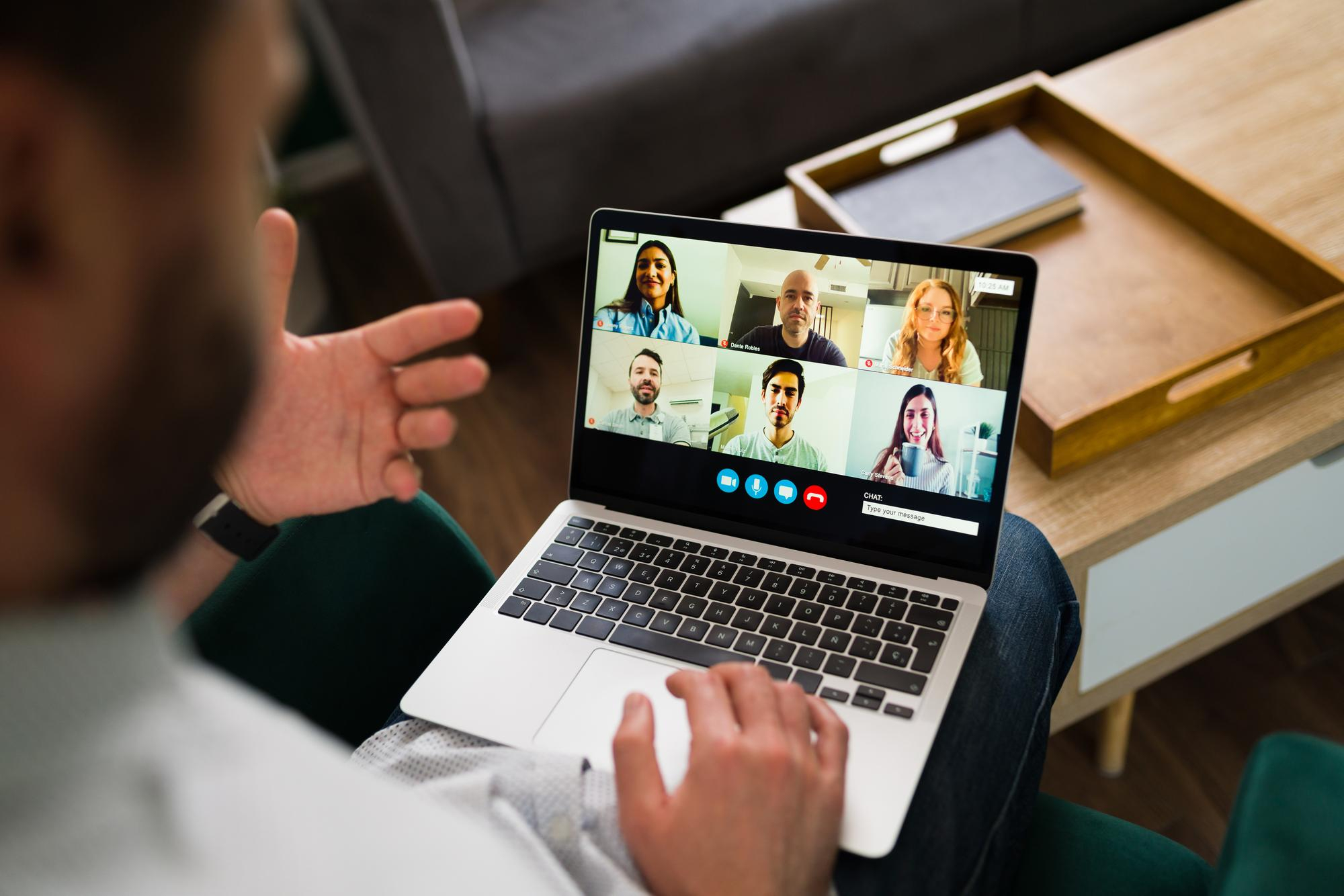
Microsoft Teams is testing a new AI feature called Facilitator to track meeting conversations and manage notes. Here is how the tool works, what it means for your privacy, and how to stay in control.
Table of Contents
What Happened?
According to TechRadar, Microsoft revealed a new artificial intelligence tool called Facilitator for Microsoft Teams. The tool proactively monitors video calls to detect questions, spot missing information, and share relevant answers in the meeting chat using web searches.
Furthermore, Facilitator can track meeting agendas with visual sidebars, manage timers, and write automated call recaps. It can also capture and transcribe in-person meeting notes directly from a mobile device.
Microsoft announced that the tool is currently in public preview for selected business users with a Copilot license.
Who Is Affected and What Data Is Monitored?
Because Facilitator is an internal feature, no external data breach or cyberattack has occurred. However, the tool needs to watch and listen to your entire meeting to function properly. It records real-time spoken conversations, chat logs, shared documents, and meeting notes.
While Microsoft confirmed the tool will be turned off by default, anyone on the call can see the updates once activated.
Passport numbers, addresses, phone numbers, and personal records are goldmines for criminals. They use this data for phishing emails, identity theft, impersonation scams, and fraud schemes.
No one is immune to data breaches. If your information is stored online — through a school, employer, service, or retailer — it could be exposed in a cyberattack. Checking for risks regularly is important, but doing it manually takes time and can be easy to miss. Automated monitoring helps you stay informed and spot potential problems sooner.
Futureproof monitors your account 24/7 for data leaks and gives clear steps to secure your account from scams.
How Microsoft Teams Facilitator Works
Microsoft has not reported any security vulnerabilities with this rollout. Instead, Facilitator functions as an integrated digital assistant using cloud-based AI.
To use the feature, an organization must buy a specialized license and manually turn the tool on for specific calls. When active, the software listens to spoken dialogue and analyzes text to answer questions or organize tasks.
Even though external guests cannot access the main controls, all internal meeting members can view the real-time sidebar notes.
Futureproof keeps your data safer with simple guidance to set a strong password, turn on 2-step verification, and lock down your account.
Check my safetyWhat This New AI Assistant Means for Your Workplace Privacy
As corporate tools adopt automatic listening features, the line between helpful assistance and constant workplace surveillance becomes thinner. AI tools gather massive amounts of conversational data, which can quickly become valuable targets for hackers if access permissions are configured poorly.
In fact, IBM’s 2025 Cost of a Data Breach Report revealed that 63% of organizations do not have official policies to manage AI safety. Even worse, among companies that suffered an AI-related security breach, 97% had failed to set up proper access controls.
That means any new tool connected to your daily communications deserves careful attention, even when released by a major provider.

3 Simple Steps to Protect Your Information on Virtual Calls
You cannot control every software update your company adopts, but these simple habits can help protect your personal privacy:
- Check for recording and monitoring indicators
Look at the top corner of your screen when joining any digital meeting. Most video apps display a red dot, icon, or banner when a recording or transcript tool is active. If you see a live tracking icon, avoid sharing sensitive personal details like health updates or financial information.
- Review app permissions on your devices
Unnecessary background permissions can allow tools to access your microphone or camera when you do not realize it. Open your computer or phone settings, select Privacy or Applications, and check which software has camera and microphone access. Turn off access for any app that does not need it to function.
For websites, the Futureproof browser extension makes this process easier. It shows when a site is accessing your camera, microphone, location, or notifications and lets you block that access with one click.
Instead of searching through browser settings, you can manage permissions directly from your screen and prevent unnecessary access that could lead to unwanted tracking, spam, scams, or other privacy risks.
- Protect your main email account
Your primary email is linked to both your work and personal accounts. If someone gains access to it, they could reset your passwords across multiple platforms.
To secure your email account, open your email settings, choose Security, and turn on two-step verification (an extra security step that requires a unique code).
Staying Alert Gives You Control Over Your Digital Privacy
New digital tools can make administrative work much easier, but they also require clear privacy boundaries. Paying attention to active recording icons, reviewing app permissions, and securing your accounts helps you stay protected.
Staying informed ensures you enjoy modern workplace conveniences without sacrificing your personal peace of mind.

At Futureproof, Kevin explains digital safety in simple words, with clear tips and zero fluff. He holds a degree in information technology and studies fraud trends to keep his tips up-to-date.
In his free time, Kevin plays with his cat, enjoys board-game nights, and hunts for New York’s best cinnamon rolls.